
Want to trade smarter? The Volume Weighted Average Price (VWAP) is a must-have tool for Forex traders. Our new, free MT5 VWAP Indicator for MetaTrader 5 makes it easy to spot trends, find entry points, and manage trades. In this guide, you’ll learn what VWAP is, its formula, why traders love it, how to install it, and how to tweak its settings. Ready to level up your trading? Let’s get started.

What Is VWAP?
VWAP stands for Volume Weighted Average Price. It’s a technical indicator that shows the average price of a currency pair, weighted by trading volume, over a specific period.
Unlike a simple moving average, VWAP factors in volume, giving you a more accurate view of market activity. It appears as a line on your MT5 chart, helping you gauge the “fair” price of an asset.
VWAP resets daily, making it ideal for intraday trading. It’s widely used in Forex, stocks, and other markets. With our MT5 VWAP Indicator, you can apply it effortlessly to your charts.

VWAP is available for MetaTrader 5 and is FREE to download.
How Does MT5 VWAP Work?
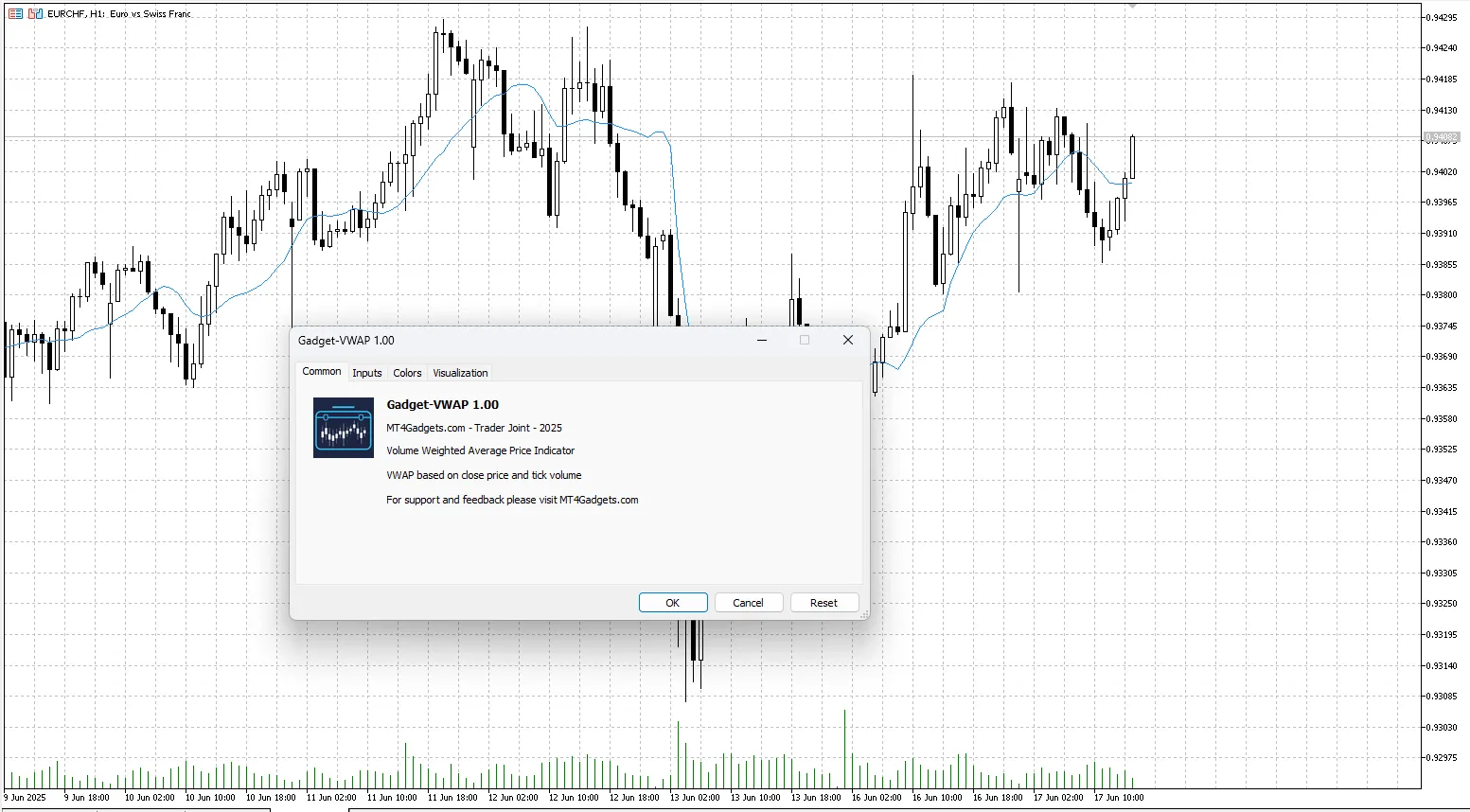
Once you download and install the VWAP Indicator for MT5 you can set the period of the average and the indicator takes care of everything else.
You can select options related to the line styling.
The indicator will update the value every price change
The Candlestick Timer for MT5 can be used in for:
- Forex Pairs
- Indices
- Stocks
- Commodities
- Everything
MT5 VWAP Parameters
The indicator includes some really useful parameters to make it suitable to most traders.
Traders can set their preferred line styling and average period.
The period allows to consider more or less candles depending on your preference.

VWAP Installation on MT5
To install the Indicator:
- Download the indicator file
- Open Metatrader
- In Metatrader go in File > Open Data Folder
- Open the MQL5 folder in MT5
- Copy the indicator file in the Indicators Folder
- Restart Metatrader, or right click the folder containing the tool in Metatrader and select “Refresh”
- Drag the tool into the chart where you want to load it
For any feedback or assistance needed please reach out through the Contact Form.